Visual Data Tools, Inc.


DataGraph Framework

DataGraph Framework

Quick and easy way to add graphs to your application


Short Description

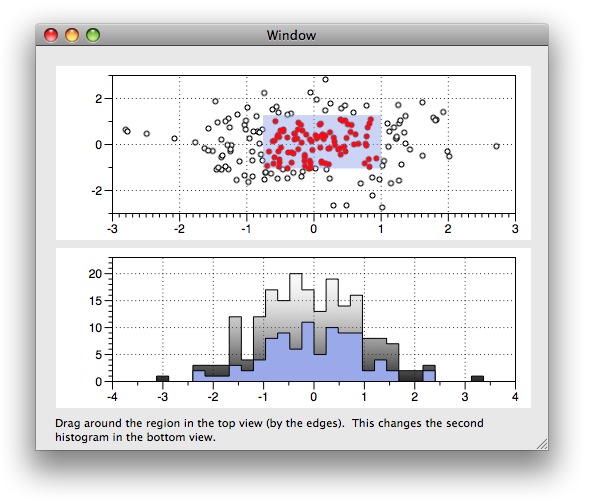
DataGraph is implemented in Cocoa, and separates the underlying engine from the user interface. This made it possible to break the drawing engine from the user interface, and this is what is in the DataGraph framework. You are therefore able to create exactly the same graphics in your own program. You can use the framework without any GUI, connect only the drawing view, connect it to a data table, and connect a number of sliders, fields and menus to the underlying graphics engine. (more information after the license information)

Download

The framework is compiled for 10.5 (Download Now). Getting a version for 10.4 is possible on request, but it is unfortunately not possible to include a version for both 10.4 and 10.5. This disk image includes several example scripts to get you started. The framework is a Quad binary, and supports ppc and x86 in 32 and 64 bit mode. It also supports garbage collection.

License

There are four different cases

Use cases

A few example uses of the framework, to explain what license option is suitable.

More Details

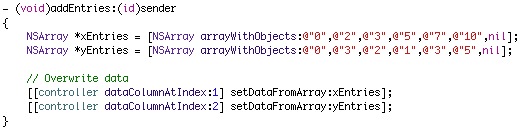
The DataGraph framework has a design philosophy that differs from the standard plotting package. In the standard approach, you might expect to have to send detailed setup commands, followed by plotting commands where you specify color, line style, line thickness etc. This gives you full flexibility, but a lot of code is needed, and your application needs to be recompiled after every small change. This is of course also how user interfaces were built before the advent of interface builders. The DataGraph framework uses more of an Interface Builder approach. You build the graph in the DataGraph application, with some sample data, and adjust things the way you want them. Here you can resize the graph window, make sure that alignments work correctly, spacing looks right etc. In XCode, you include the DataGraph file into your project, just like a nib file. In your code, you load your graph template and use it to initialize a DGController object. Once the controller has been initialized, you can incrementally change things. For example, you can overwrite the data, and the graph will update automatically. You can show/hide a command, add in a plot, for example by copying an existing plot command, and just change the line style or line color. You can of course start from an empty controller and build up everything you need.

Creating a controller programmatically

controller = [DGController controllerWithFileInBundle:@"Sample"]; // Looks for Sample.dgraph in the bundle
[controller setDelegate:self];    // Delegate suppliers undo manager, and gets callbacks.
[controller setDrawingView:view]; // view needs to be a DPDrawingView class (derived from NSView)
If you are only displaying the graph, this is all that is needed. Typically you want to replace the data. There are several methods for achiving this. The preffered method is to set the values from a pointer.
DGDataColumn *yColumn = [controller columnWithName:@"y"];
[yColumn setDataFromPointer:pointer length:len]; // pointer = (double *), len = how many entries.
This assumes that the y column is defined as a binary column inside the DataGraph file. Using other methods, you can hand in an array of strings, or modify a specific row. The graph is automatically updated. This might be all you need to do with a graph.

Digging down further, you can get access to each individual command, and tweak it. Commands have named controllers. For example, if you want to change a plot from plotting y vs x to plotting y2 vs x, where x,y,y2 are names of columns, use the following code.

DGCommand *command = [controller findCommandWithType:@"Plot" skipOver:0]; // First plot command
DGDataColumn *column = [controller columnWithName:@"y2"];
[command selectColumn:column forEntry:@"Y"];
Note that this will cause an undo message to be filed for you. Data changes will by default not file an undo (that is optional), but changes to the command structure are recorded so that you can easily unwind them during an undo.

You can also connect user interface elements to entries inside a DGController. For example, assume that you want the user to easily modify the line width and color of a plot.

DGCommand *command = [controller findCommandWithType:@"Plot" skipOver:1]; // second plot command
[command connectColorWell:colorWell toEntry:@"Line Color"];  // colorWell is a NSColorWell
[command connectColorWell:widthField toEntry:@"Line Width"]; // widthField is a NSTextField
Changes done by the user are recorded for undo purposes. You can also change the entries manually
[command setColor:color forEntry:@"Line Color"];   // color is a NSColor object
[command setString:@"1.0" forEntry:@"Line Width"]; // set it as a string
[command setNumber:[NSNumber numberWithDouble:1.0] forEntry:@"Line Width"];
If the color or field are connected to your own UI elements, the value of those elements will change to reflect the new value.

For full control over every setting, you need to know the entry names. The simplest way to do that is through the debugger window. For example, if the first drawing command is a plot command, po [controller drawingCommand:0] might give you

Between                     - Column selector      : nothing selected
Bridge Gaps                 - Check box            : Off
Connections                 - Menu                 : Line
Crop                        - Range                : -,
Error Bar Size              - Number input         : 0.5
Error Color                 - Color Tile           : c rgb (1,0,0)
Error Style                 - Menu                 : No Error
Exclude                     - Check box            : Off
Fill Color                  - Color Tile           : c rgb (0.597356,0.662316,0.918478)
Fill Style                  - Menu                 : Nothing
Gradient                    - Color Gradient
Hide                        - Check box            : Off
Label Color                 - Color Tile           : c rgb (0,0,0)
Label Font                  - Font selector        : Helvetica - 12 pts
Labels                      - Column selector      : nothing selected
Labels Offset               - Point input          : 2,0
Legend                      - Tokenized input      : y vs x
Line Color                  - Color Tile           : c rgb (0,0,0)
Line Style                  - Line style           : Solid
Line Width                  - Number input         : 0.5
Negative X Error            - Column selector      : nothing selected
Negative Y Error            - Column selector      : nothing selected
Offset                      - Point input          : 0,0
Pattern                     - Pattern              : \ (fine), lw = 0.5, bg = c rgb (1,1,1), fg = c rgb (0,0,0)
Point Fill Color            - Color Tile           : c white 1
Point Size                  - Number input         : 5
Point Style                 - Menu                 : No Point
Positive X Error            - Column selector      : nothing selected
Positive Y Error            - Column selector      : nothing selected
X                           - Column selector      : x
Y                           - Column selector      : y
This gives you the entry name in the first column, the type of that controller in the second column, and the current value in the third column. If the controller is connected to a UI element, the pointer of that element is also printed.

If you adjust things programmatically, and something doesn't look right, it is easy to debug that. Just save the state of the DGController object into a DataGraph file, and open it back in DataGraph. This will save the data inside the script, so you can see exactly what caused the problem. It might have been a mis-set line style, data that was unexpected etc.


Contact | ©2006-2008 Visual Data Tools, Inc. Chapel Hill, North Carolina